Start with your product photo, optionally edit its scene, then generate hero, detail and use-case shots. Review each quote and edit the shots together separately.
Plan without signing in · Quote before generation · Edit shots together separately
MADE FOR
Product pages · Brand launches · Social product stories
Olive Light
An original, unbranded perfume concept generated on this site · Wan 3.0 · Text-to-video · 5 seconds · 720p · Silent. Warm light passes through glass as the camera moves closer; this is separate from product-photo fidelity evidence.
See a running-shoe concept shot
Pulse · Original unbranded concept generated on this site · Seedance Mini · Text-to-video · 4 seconds · 480p · Silent, separate from physical product-photo comparisons.
Licensed photographs of three physical products were used directly as first frames on this site, without an image redraw. Play each video to check details in motion, beyond the cover frame.
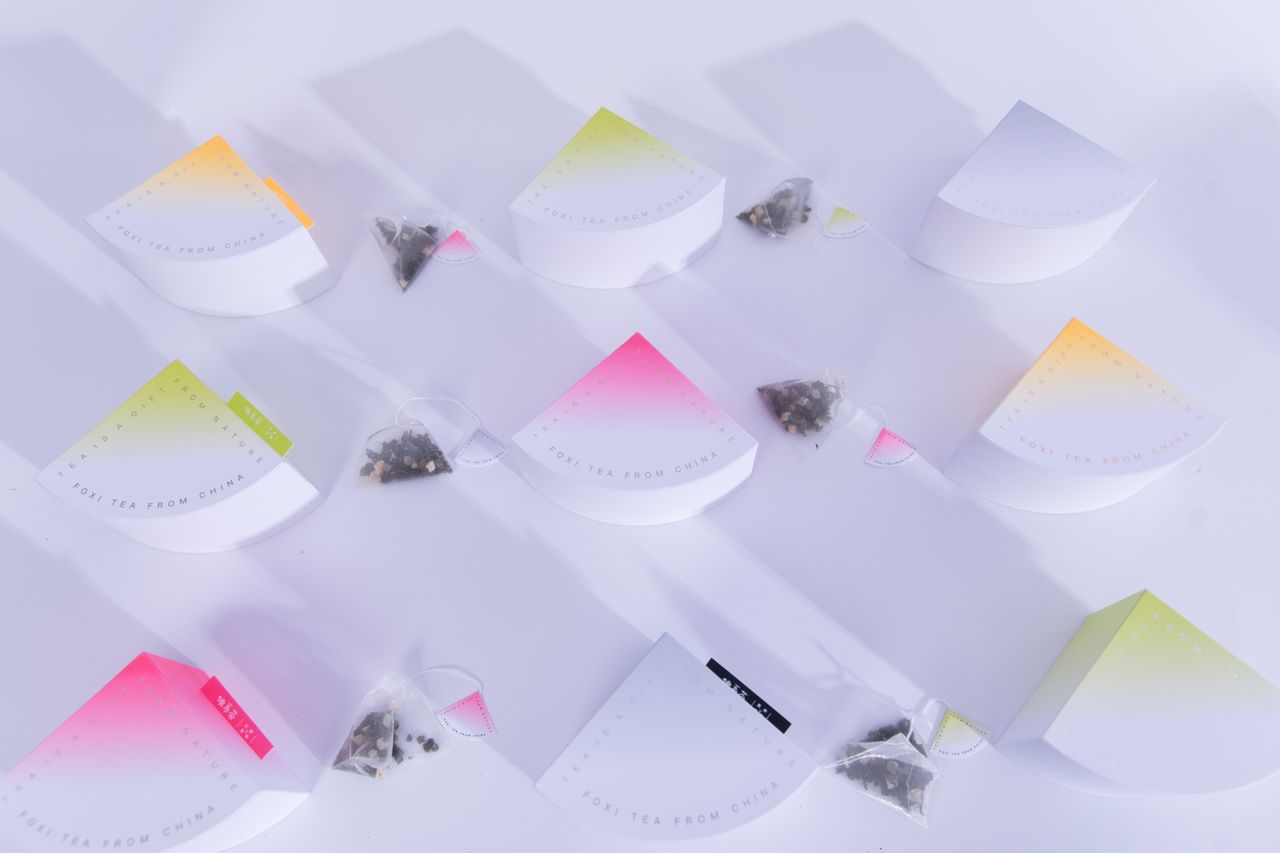
Packaging text · Tea
Before · Licensed product photographAfter · Wan 3.0 · 5 seconds · 720p profile · generated audio track · 1174×782
Check curved package edges, small lettering and the number of teabags.
Photo tip: for packaging with fine print, upload a well-lit close-up with clear text contrast, then review the lettering and teabag details frame by frame. In this sample, the original low-contrast lettering becomes harder to read as the camera moves closer, and teabag details change. Use the original packaging for accurate labels and ingredient information.
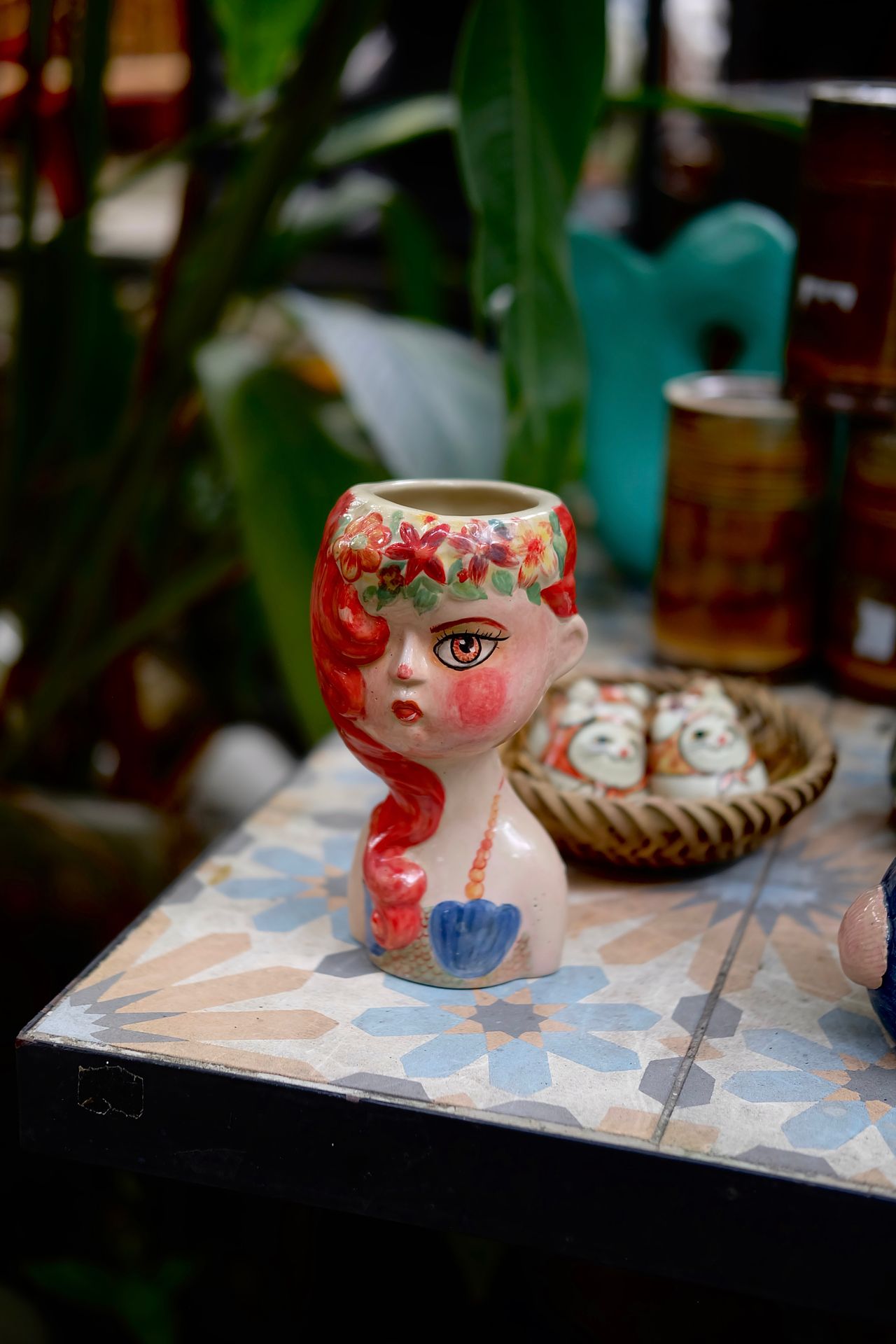
Before · Licensed product photographAfter · Wan 3.0 · 5 seconds · 720p profile · generated audio track · 782×1174
Check the flowers, painted eye, cup opening and base shape.
Photo tip: upload a clear close-up of painted decoration, then compare flowers, painted details and sculpted contours with the original frame by frame. This sample retains the broad recognizable cup form while painted and floral contours change. Review the shot before using it where a stroke-for-stroke pattern match is required.
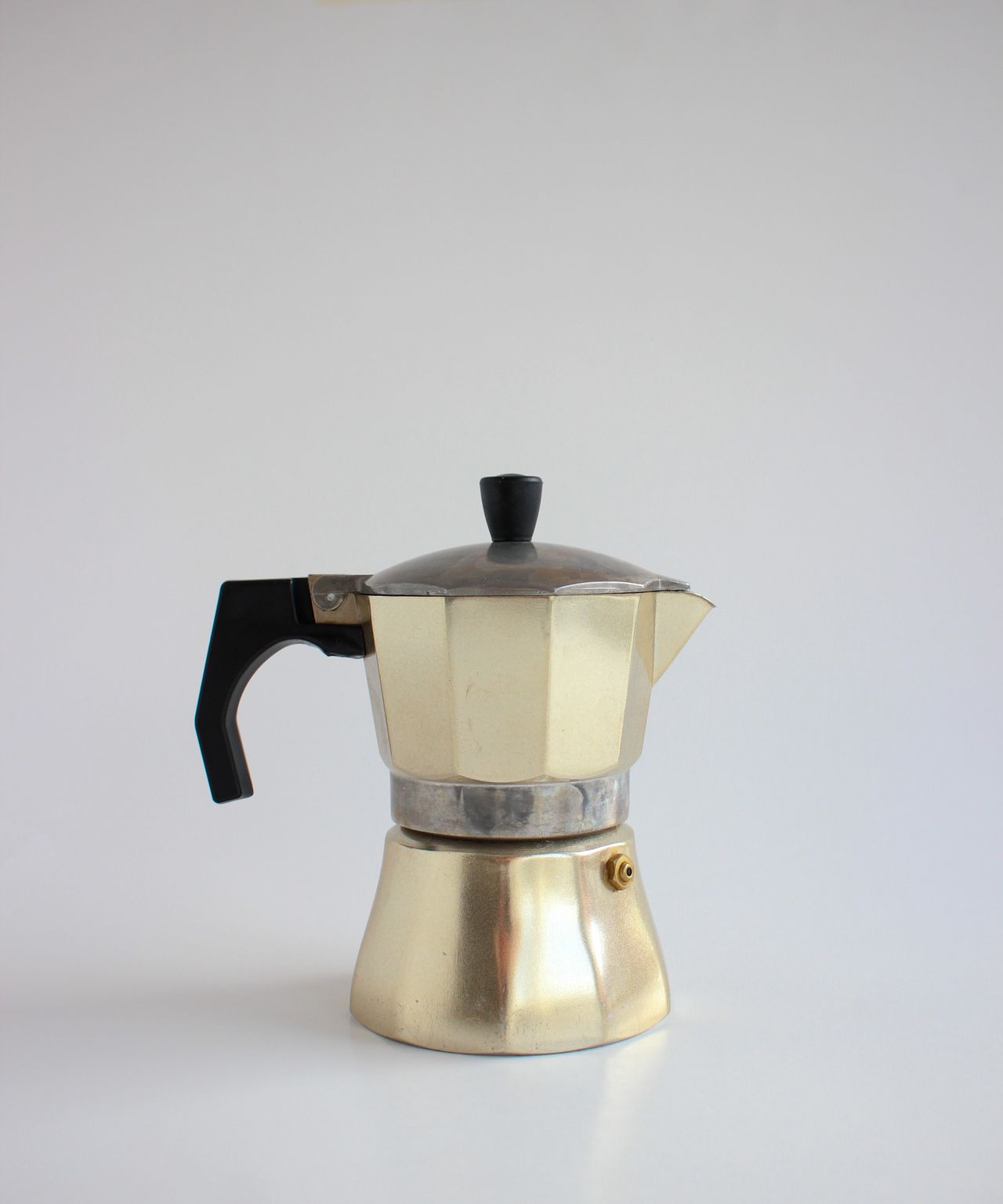
Before · Licensed product photographAfter · Wan 3.0 · 5 seconds · 720p profile · generated audio track · 876×1050
Check the spout, handle, valve and faceted body.
Photo tip: for a full-product shot, upload a photo with space around the handle and base, choose gentle camera motion, and check that the product stays in frame throughout. This sample’s push-in crops the handle and base near the end; use it as a framing reference and choose another shot when full visibility is required. Compare metal highlights and details with the real product; the generated image is a visual presentation, while material measurements belong to the physical product.
Generated on this site on 2026-10-15 · One generation per product, not a success-rate claim for every product or model. Photographs are used and modified under the Pexels License; no photographer or product-brand endorsement is implied. Review text, decoration and structure frame by frame; discard or separately regenerate unsuitable shots. Pexels License
PRODUCT SCENE EDIT / GENERATED ON THIS SITE
See how one product image becomes a new scene.
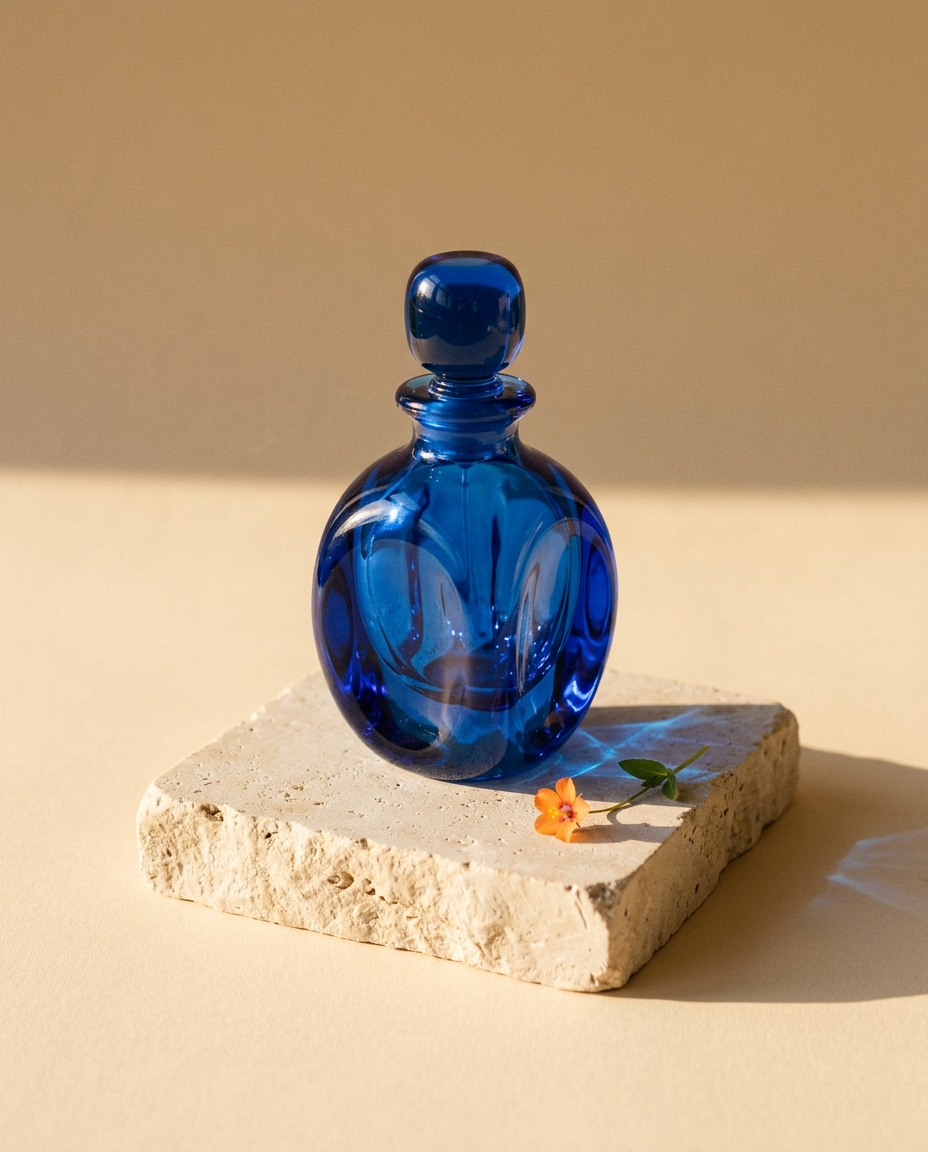
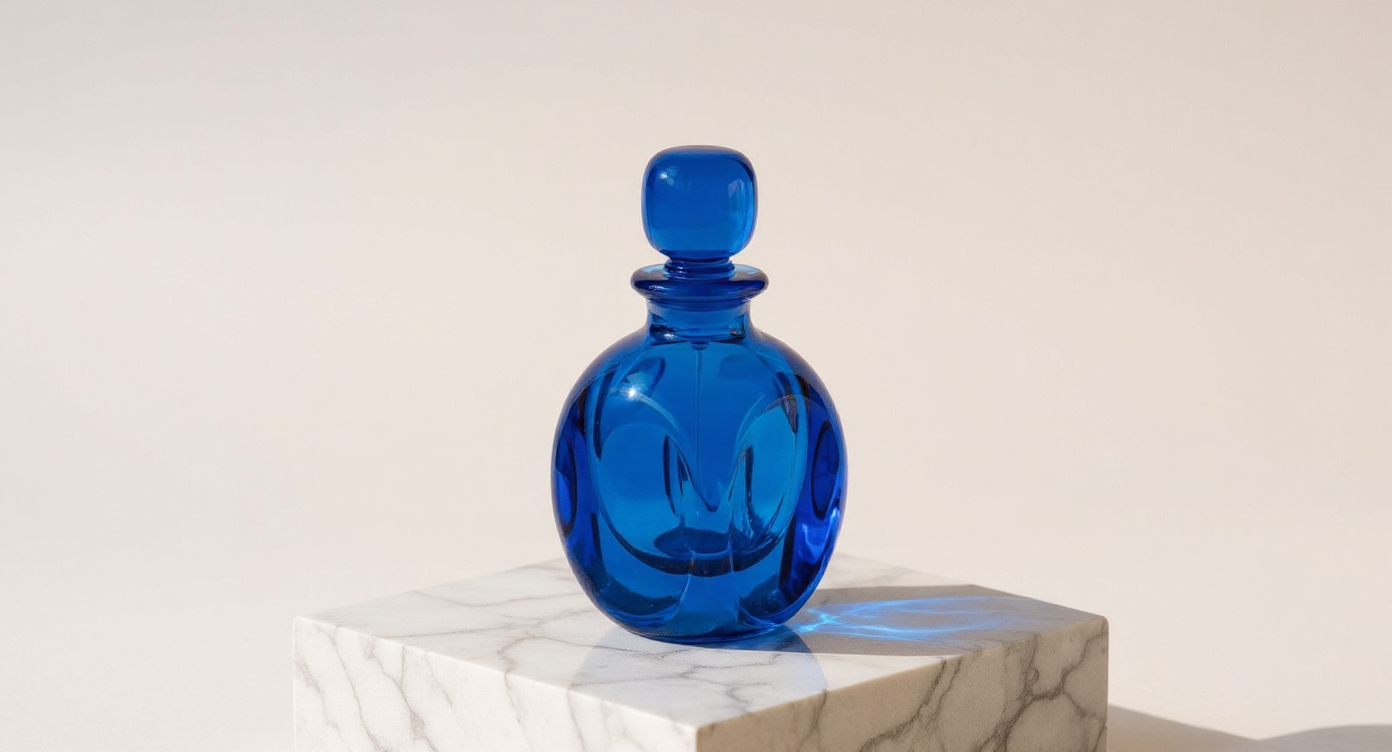
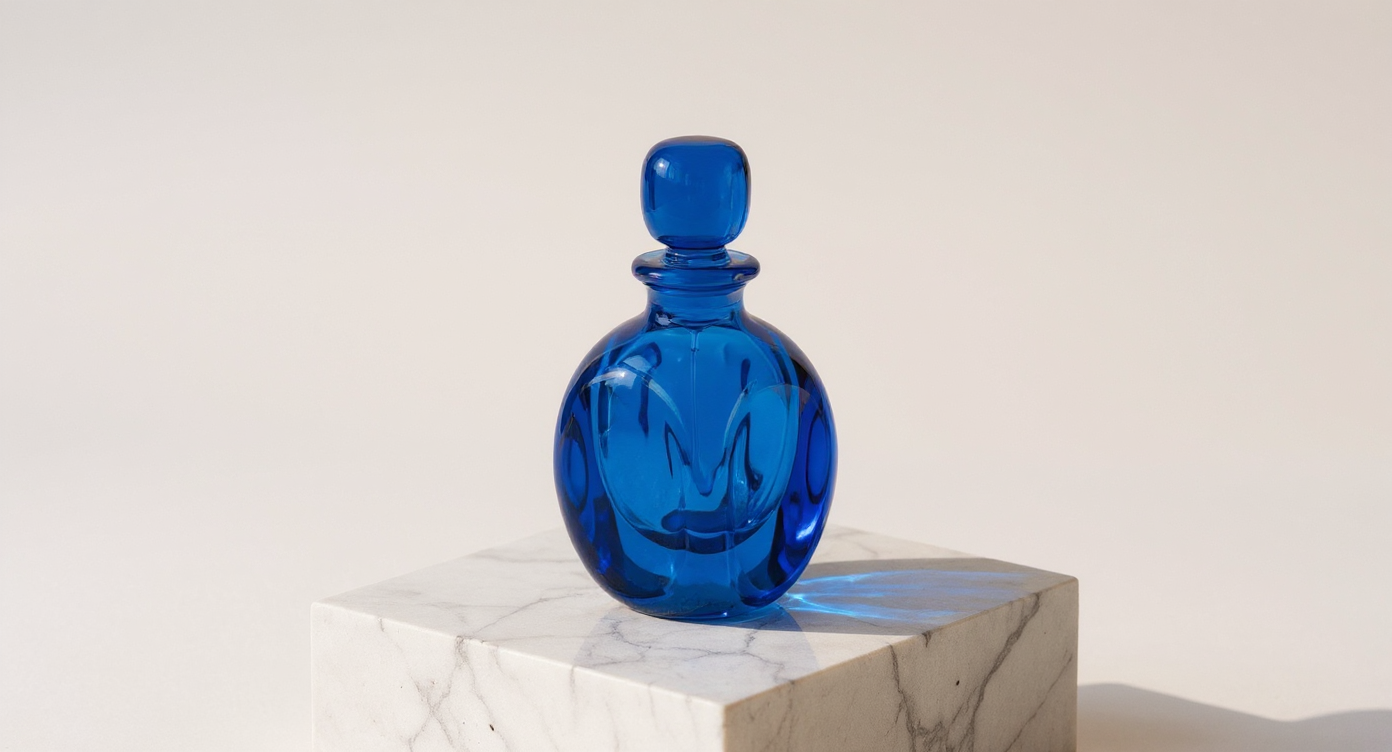
Both edits use the same reference and prompt: preserve the blue glass bottle and stopper, remove the flower and stone slab, and create a studio scene on pale marble.
Original reference
An original, unbranded product concept created on this site
FLUX Kontext Pro
Scene edit · Reference quote: 5 Credits
FLUX Kontext Max
Scene edit · Reference quote: 10 Credits
Tested 2026-10-13 · One reference per edit · Requested 16:9 / 1K / standard; actual outputs: 1392×752. These scene edits of an unbranded concept can serve as scene images for a later video. For your own product photo, keep logos, packaging text and complex structures clearly visible and compare each in the edited result; their fidelity has not been verified in this example. Confirm a valid studio quote before generating.
Then turn the scene into a shot.
This video starts from the Pro output above, rather than a text description of a similar product. Image editing and video generation are separate steps with separate quotes. Edit multiple shots together yourself.
Start with one shot to explore your product showcase: upload a photo with clear logos, packaging text and detail, then compare the preview frame by frame. The reference guides the image; review each detail for an exact match.
ClipmivoAI original · Image-to-video test on this site · 2026-10-13 · Actual picture: 1306×704, 5 seconds, with audio track · Not a finished ad
One product. Three directions for your shots.
01
Hero reveal
Center a single product on a clean set with soft rim lighting. Slowly push in to reveal its silhouette. Keep its shape stable; add no captions or invented logos.
02
Material detail
Use a macro side view and shallow depth of field to show its distinctive material. Track slowly across the surface. Show only supplied details, with no unverified performance demonstration.
03
In context
Place the product in a simple setting appropriate to its use. Use a locked camera with subtle natural ambient motion. Keep the subject clear and leave clean space for copy added in editing.
The planner creates three editable prompts. Generate the shots separately, then combine them, add captions and music in your editing tool.
Turn your idea into a creative plan
Plan prompts for free, without signing in. Review the quote in the studio before generating images or video.
YOUR PRODUCT / YOUR DIRECTION
Have a product photo? Start with your own material.
Animate your product photo directly, or prepare a new scene in the image editor first. The result is saved to Assets; choose “Use in video” to take it into the video studio. Image and video generation are quoted and charged separately.
Use a well-lit image with the full product visible, and only media you have permission to use.
Give each shot one main action: a slow push-in, a gentle orbit or a detail close-up.
Keep shape, color, packaging and text clearly visible in your photo, then compare the preview frame by frame; references guide the image, and exact detail still needs review.
The videos at the top are text-to-video concept shots. They are not product-image fidelity tests or edited finished ads.
A few things before you create
What is free?
Planning, editing and downloading a brief are free. Video generation requires sign-in and credits. Sample reference caps come from current public prices; confirm a valid quote in the studio before submitting.
Does this automatically create a finished product ad?
No. This page plans prompts and transfers one shot at a time. Generate each shot separately, then handle editing, captions, music and final ad review.
Can it read a product URL?
Product URLs are not automatically imported. Enter the product name, material, selling point and use case; upload reference images in the studio.
What product photo works best for image-to-video?
Start with a sharp, evenly lit photo that shows the complete product with space around it. Make packaging text, logos and important geometry clear in the source; a simple background makes frame-by-frame changes easier to spot.
Will packaging text and logos stay exact?
Exact preservation is not guaranteed. A reference guides shape, color and composition, but generated motion can still alter fine text, artwork, edges or proportions. Compare the clip with the source frame by frame, and add accurate labels, ingredients, prices and claims in editing from your original brand assets.
Make your next story personal.
Explore portrait effects with clear photo rules and credit quotes before generation.